
Revive Your Laptop: Hardware and Software Solutions Explained

Laptops are essential tools in our daily lives, whether for work, study, or leisure. However, over time, they can slow down, become less responsive, or even fail to function altogether. If you find yourself frustrated with a sluggish laptop, you’re not alone. Fortunately, there are various hardware and software solutions available to breathe new life into your device. This guide will explore practical steps you can take to revive your laptop, ensuring it runs smoothly and efficiently.
Understanding Common Laptop Issues
Before diving into solutions, it’s crucial to identify the common issues that can affect laptop performance. Here are some frequent problems users encounter:
Slow Performance: This can be caused by insufficient RAM, a fragmented hard drive, or too many background applications running.
Overheating: Dust accumulation in vents or failing cooling fans can lead to overheating, which may cause the laptop to shut down unexpectedly.
Battery Drain: A battery that drains quickly may indicate age or software issues that need addressing.
Software Crashes: Frequent crashes can stem from outdated software, malware, or hardware incompatibilities.
Recognizing these issues is the first step toward effective solutions.
Hardware Solutions
Upgrading RAM
One of the most effective ways to improve your laptop's performance is by upgrading its RAM (Random Access Memory). More RAM allows your laptop to handle multiple tasks simultaneously without slowing down. Here’s how to determine if a RAM upgrade is right for you:
Check Current Usage: Open the Task Manager (Windows) or Activity Monitor (Mac) to see how much RAM is currently in use. If you consistently use over 80% of your RAM, an upgrade may be beneficial.
Compatibility: Ensure that your laptop supports additional RAM. Check the manufacturer’s website for specifications.
Replacing the Hard Drive with an SSD
If your laptop still uses a traditional hard disk drive (HDD), consider upgrading to a solid-state drive (SSD). SSDs are significantly faster than HDDs, leading to quicker boot times and improved application loading speeds. Here’s what to keep in mind:
Data Transfer: Back up your data before replacing the hard drive. You can use external drives or cloud storage for this purpose.
Installation: If you’re comfortable with hardware, you can install the SSD yourself. Otherwise, seek professional help.
Cleaning the Internal Components
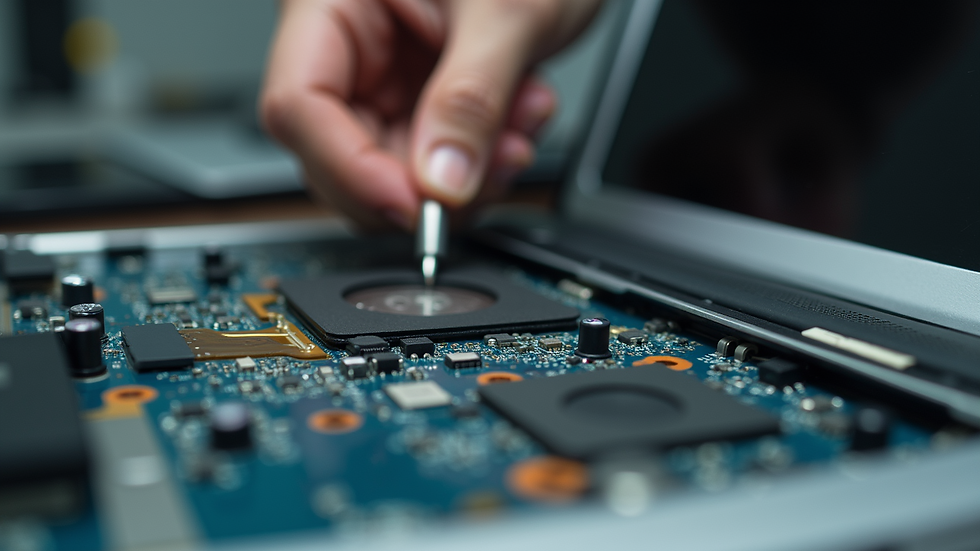
Dust and debris can accumulate inside your laptop, leading to overheating and performance issues. Regular cleaning can help maintain optimal performance. Here’s how to do it safely:
Power Down: Always turn off your laptop and unplug it before cleaning.
Use Compressed Air: Blow out dust from vents and fans using compressed air. Avoid using a vacuum, as it can create static electricity.
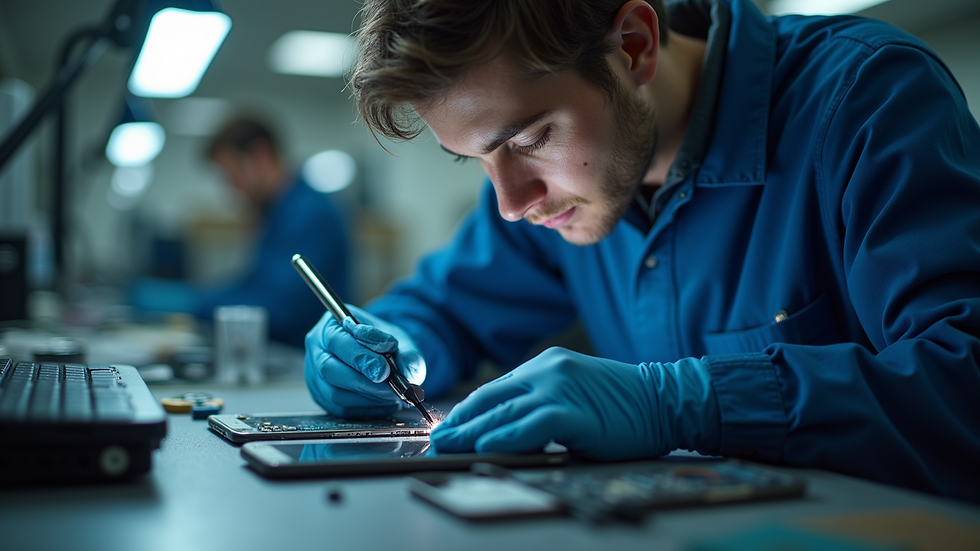
Professional Cleaning: If you’re unsure about opening your laptop, consider taking it to a professional for cleaning.
Software Solutions
Updating Operating System and Drivers
Keeping your operating system and drivers up to date is essential for optimal performance. Updates often include security patches, bug fixes, and performance enhancements. Here’s how to ensure everything is current:
Windows Update: Go to Settings > Update & Security > Windows Update to check for updates.
Mac Update: Click on the Apple menu and select System Preferences > Software Update.
Driver Updates: Use Device Manager (Windows) or check the manufacturer’s website for the latest drivers.
Uninstalling Unnecessary Programs
Over time, laptops can accumulate software that you no longer use. Uninstalling unnecessary programs can free up space and improve performance. Here’s how to do it:
Windows: Go to Control Panel > Programs > Programs and Features. Select the program you want to remove and click Uninstall.
Mac: Open Finder, go to Applications, and drag any unwanted applications to the Trash.
Running Antivirus and Malware Scans
Malware can significantly slow down your laptop and compromise your data. Regularly running antivirus scans can help keep your device safe. Here’s how to do it:
Choose a Reliable Antivirus: Use well-known antivirus software, such as Norton, McAfee, or Bitdefender.
Schedule Regular Scans: Set your antivirus to run scans automatically at regular intervals.
Enhancing Battery Life
Adjusting Power Settings
Optimizing your laptop's power settings can extend battery life. Here’s how to adjust these settings:
Windows: Go to Control Panel > Hardware and Sound > Power Options. Choose a power plan that saves energy.
Mac: Open System Preferences > Battery and adjust settings for better battery management.
Battery Calibration
Calibrating your battery can help improve its performance. Here’s a simple method:
Charge your laptop to 100%.
Use it until it completely discharges and shuts down.
Charge it back to 100% without interruption.
Replacing the Battery
If your laptop’s battery drains quickly despite calibration, it may be time for a replacement. Check with the manufacturer for compatible battery options.
Regular Maintenance Tips
Disk Cleanup
Regularly performing disk cleanup can help free up space and improve performance. Here’s how to do it:
Windows: Use the built-in Disk Cleanup tool. Search for "Disk Cleanup" in the Start menu, select the drive you want to clean, and follow the prompts.
Mac: Use the Optimize Storage feature in System Preferences > Apple ID > iCloud.
Defragmenting the Hard Drive
If you’re using an HDD, defragmenting can help improve access times. Here’s how to do it:
Windows: Search for "Defragment and Optimize Drives" in the Start menu, select your drive, and click Optimize.
Mac: macOS automatically handles defragmentation, so no action is needed.
Regular Backups
Regularly backing up your data is crucial. Use external drives or cloud services to ensure your files are safe. Here’s how to set it up:
Windows: Use File History or Backup and Restore in Control Panel.
Mac: Use Time Machine to back up your files automatically.
Conclusion
Reviving your laptop doesn’t have to be a daunting task. By implementing a combination of hardware upgrades and software optimizations, you can significantly enhance your device's performance. Whether it’s upgrading RAM, switching to an SSD, or keeping your software updated, each step contributes to a smoother, more efficient laptop experience.
Take action today to breathe new life into your laptop. With the right approach, you can extend its lifespan and improve your productivity. Don’t let a slow laptop hold you back; embrace these solutions and enjoy a revitalized computing experience!
Comments